> For the complete documentation index, see [llms.txt](https://docs.mashmatrix.com/mashmatrix-sheet/llms.txt). Markdown versions of documentation pages are available by appending `.md` to page URLs; this page is available as [Markdown](https://docs.mashmatrix.com/mashmatrix-sheet/functions_about_books_sheets/manage_book_access_level.md).
# Manage Book Access
Immediately after a book is created, only the owner of the book can view and manage the book. By moving the book into a folder, the book can be shared with other users.
Folders are used to organize books, and at the same time serve as the unit for configuring access settings to share and manage created books among multiple users.
### Folder Sharing Settings
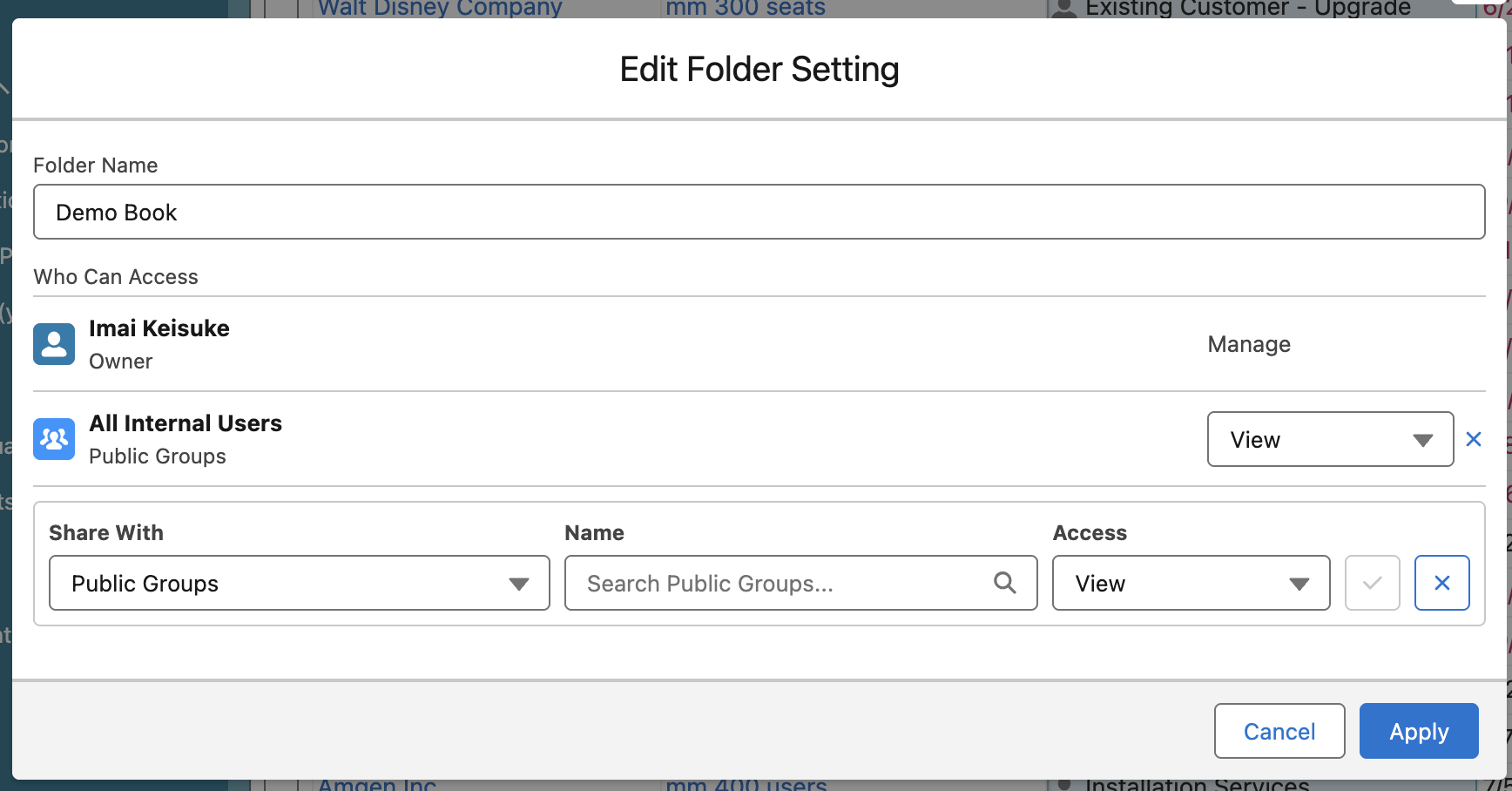
In the Edit Folder Setting dialog, you can add users who can access the folder as sharing targets. The following types of sharing targets can be searched and selected:
* **Public Groups** - All public groups defined by the Salesforce administrator. If Digital Experiences or portals are enabled in the Salesforce organization, the \[All Partner Users] or \[All Customer Portal Users] groups are also displayed.
* **Roles** - All roles defined in the Salesforce organization (excluding site roles and portal roles). This includes all users in the specified role.
* **Roles and Internal Subordinates** - All roles defined in the Salesforce organization. This includes all users in the specified role, as well as all users belonging to roles below the specified role (excluding site roles and portal roles).
* **Roles, Internal and Portal Subordinates** - All roles defined for the organization. This includes all users in the specified role, as well as all users belonging to roles below the specified role, including site roles and portal roles.
* **Users** - All active users registered in the Salesforce organization (excluding high-volume users)
In addition, you can set the following four levels of access for added sharing targets:
* **View** - Can browse the folder and books contained within the folder
* **Add** - Everything in View, plus creating books in this folder or moving books into it
* **Update** - Everything in Add, plus changing settings of, deleting, and moving books contained within the folder
* **Manage** - Everything in Update, plus changing this folder's settings and sharing, and moving or deleting it
{% hint style="info" %}
The access levels for a folder include the lower permissions in the order of view, add, update, and manage. If multiple access levels are set for a user, the highest permission is applied.
{% endhint %}
The sharing targets of a folder and the access level settings for each of them can be checked in read-only form by any user who has the view access level or higher for that folder. Only users with manage permission can change the settings.
Access permissions for a book are not configured for individual books, but are determined through the settings of the folder that contains them. There are two access levels:
* **View** - Can browse the book and have it displayed in the navigation menu
* **Update** - Can change the settings of and delete the book, and move the book to a folder
The "Add" access level for a folder is equivalent to view access for the books within that folder. You can create books in the folder or move books into it, but you cannot change the settings of or delete books that are already in the folder.
{% hint style="info" %}
In this user guide, users with update permission on a book may be referred to as **"book administrator"**, and users with view-only access may be referred to as **"general users"**.
{% endhint %}
### Access Permissions of Folder / Book Owners
The owner of each book or folder is always granted access permissions as follows:
* The owner of a folder implicitly has manage permission for that folder
* The owner of a book implicitly has update permission for that book
### Notes on Folder / Book Access
* Sharing target settings that allow access to a folder must be configured individually for each folder. Sharing target settings are not inherited through the folder hierarchy.
* Moving a book into a folder is only possible when you have update permission on the book and the add access level or higher on the destination folder.
* If the move would make the book no longer editable by you, the book cannot be moved into that folder.
* Books and folders that are implicitly granted shared access through Salesforce administrator privileges or the role hierarchy are not displayed in the navigation menu of the Mashmatrix Sheet application. Only folders and books that are explicitly granted shared access through folder settings are displayed in the navigation menu.
* For folders that have been shared since before Release 37.0, even if you have manage permission as the folder owner, the books contained within remain accessible with view-only permission. By explicitly updating and saving the folder's sharing settings, update permission becomes effective for the books within the folder.