> For the complete documentation index, see [llms.txt](https://docs.mashmatrix.com/mashmatrix-sheet/llms.txt). Markdown versions of documentation pages are available by appending `.md` to page URLs; this page is available as [Markdown](https://docs.mashmatrix.com/mashmatrix-sheet/functions_about_displaying_data/change_column_setting/action.md).
# Column Setting - Action
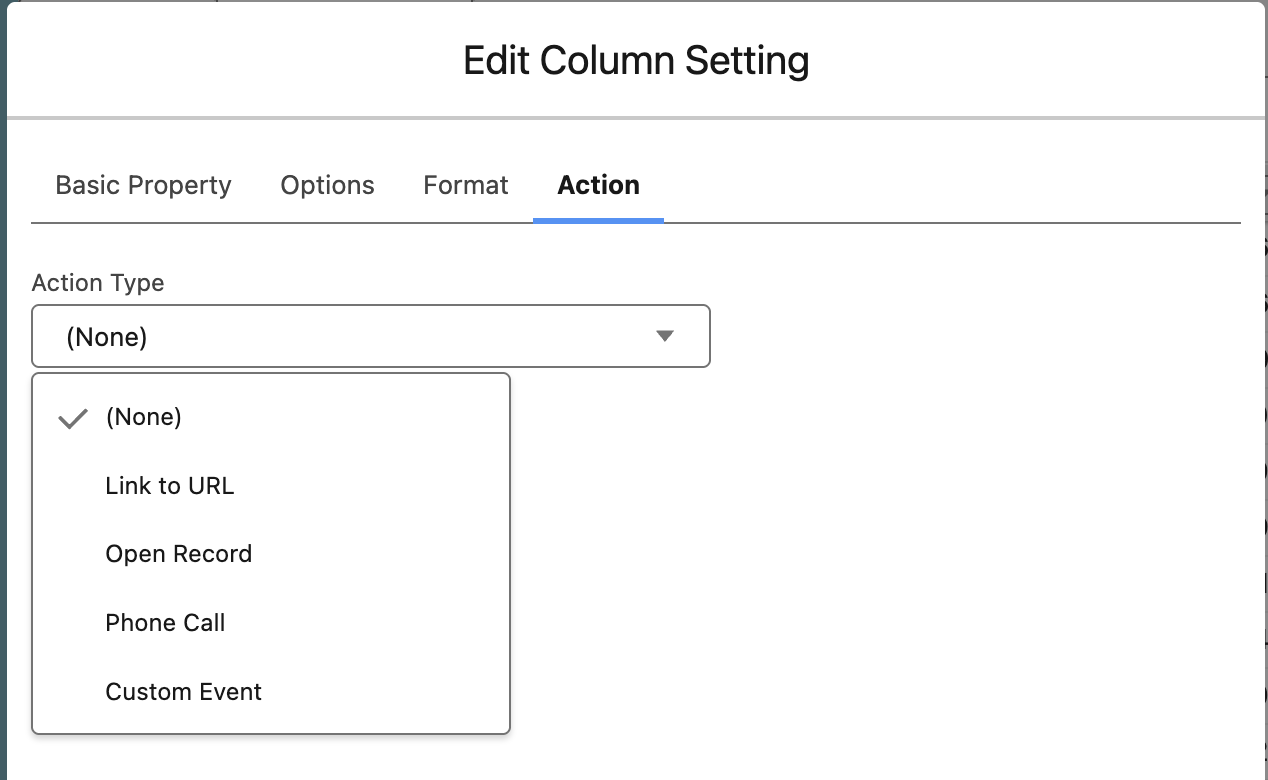
In the Action tab, you can set links (action links) in cells within a column and specify that certain actions are performed when the links are clicked.
The following types of actions can be configured:
* Link to URL
* Open Record
* Call (Phone)
* Custom Event
### Link to URL
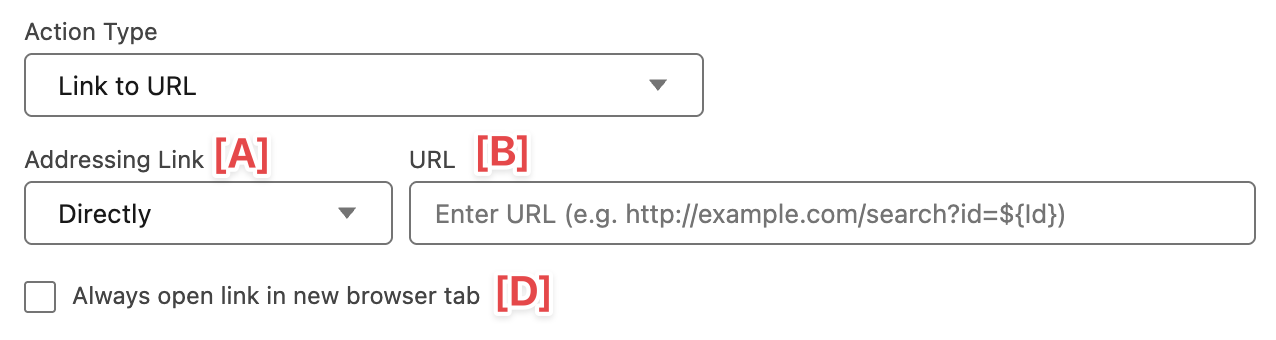
Set a link to any URL.
* **\[A] URL specification method** - Select how to specify the URL that will be the link destination
* **Direct input** - Directly specify the URL that will be the link destination
* **Specify column** - Select a column that contains the URL value that will be the link destination
* **Auto-detect** - Detect URL strings (those starting with http\:// and https\://) in the content and automatically set links
* **\[B] URL** - This can be entered when "Direct input" is selected as the "URL specification method". You can embed record values in the URL string by enclosing field API reference names with `${` and `}` like `${Id}`
* **\[C] Column containing URL** - This can be entered when "Specify column" is selected as the "URL specification method". The value displayed in the selected column is used as the link destination URL
* **\[D] Always display new browser tab** - When the link is clicked, display the link destination URL in a new browser tab
### Open Record
Open the record detail page for the specified record ID.
* **\[A] Addressing Record** - Select how to specify the record to be opened
* **From Field Value** - Select a field that contains the record ID of the record to be opened
* **From Column Value** - Select a column that contains the record ID of the record to be opened
* **From Current Column** - Targets the record in which the value displayed in that column is stored. For a column that displays a field accessed through a relationship, the record at the end of the relationship is targeted
* **\[B] Field for record ID** - This can be entered when "From Field Value" is selected as the "Addressing Record". Select a field from the sheet's main object that will be the record ID.
* **\[C] Column for record ID** - This can be entered when "From Column Value" is selected as the "Addressing Record". The value displayed in the selected column is used as the record ID.
* **\[D] Display mode** - Select how to display the record
* **View** - Display the record detail screen
* **Edit** - Display the record edit screen. In Lightning Experience, the edit screen is displayed in a popup dialog
{% hint style="info" %}
In a union sheet, the object to which a record belongs differs from row to row, so "From Field Value" cannot be selected. Use "From Current Column" or "From Column Value". For union sheets, see "[Union Sheet](/mashmatrix-sheet/functions_advanced/union_sheet.md)".
{% endhint %}
### Call (Phone)
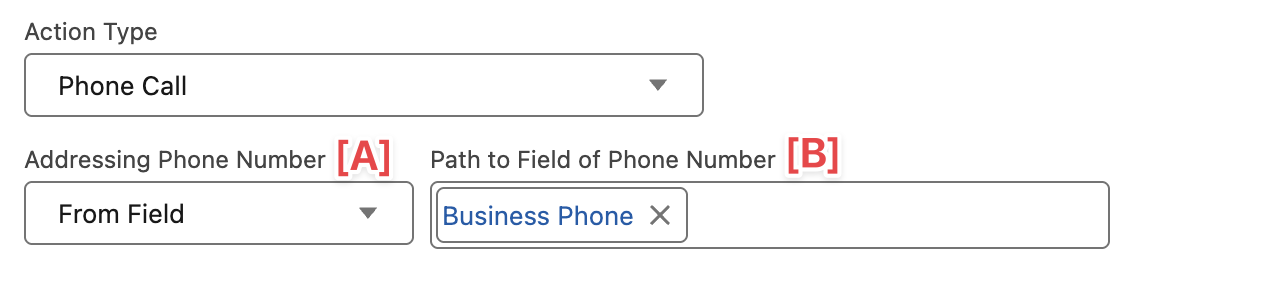
Make a phone call to the specified phone number via Open CTI.
* **\[A] Phone number specification method** - Select how to specify the phone number to call
* **Specify field** - Select a field that contains the phone number to call
* **Specify column** - Select a column that contains the phone number to call
* **\[B] Field for phone number** - This can be entered when "Specify field" is selected as the "Phone number specification method". Select a field from the sheet's main object that will be the phone number.
* **\[C] Column for phone number** - This can be entered when "Specify column" is selected as the "Phone number specification method". The value displayed in the selected column is used as the phone number.
{% hint style="info" %}
To make phone calls with the "Call (Phone)" action link, Salesforce must have call center settings compatible with Open CTI configured, and the logged-in user must be added as a call center user. Additionally, the softphone must be placed in the utility bar in Lightning applications that include Mashmatrix Sheet tabs or Sheet components.
{% endhint %}
### Custom Event
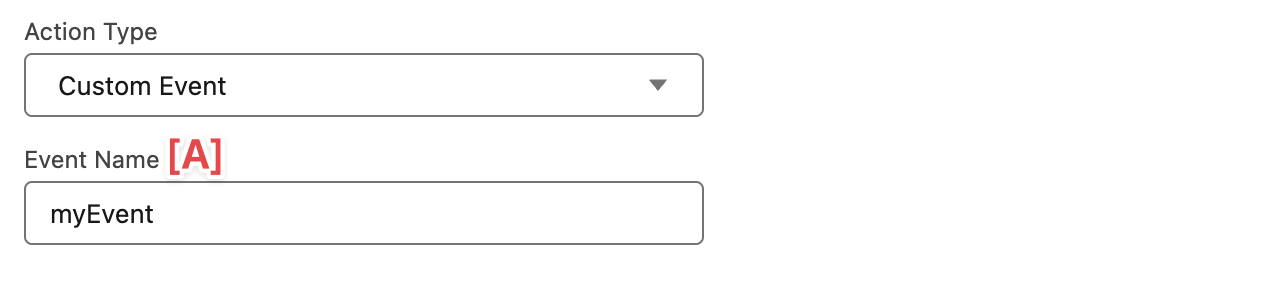
Fire custom events that can be captured by the Message Channel API. For details on Message Channel API and custom events, refer to "[Developing Apps using Message Channel API](/mashmatrix-sheet/customization/developing_apps_using_message_channel_api.md)".
**\[A] Event name** - Set an event name that can be identified by Message Channel API subscribers